How to Download GB WhatsApp Status Videos to Your Phone
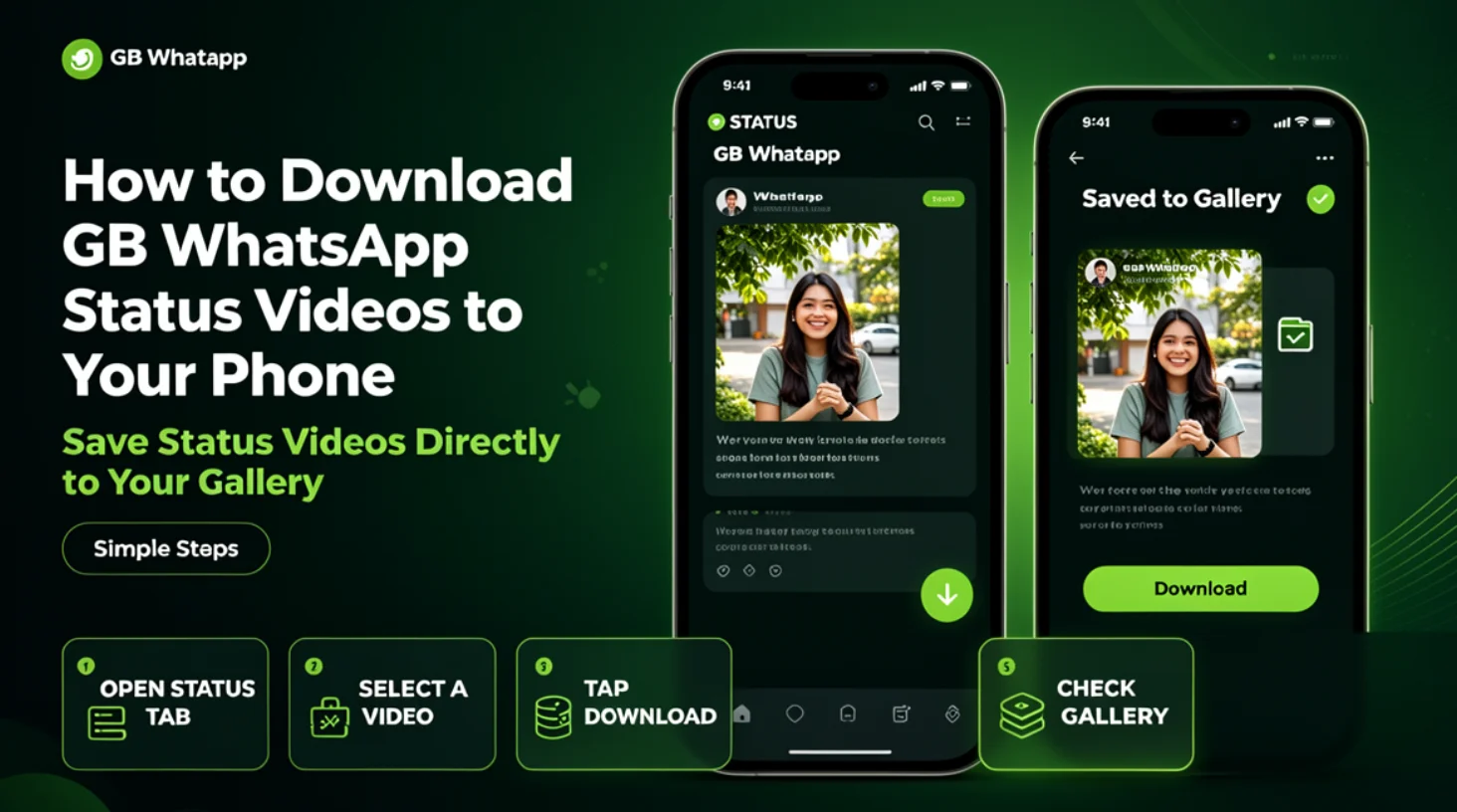
If you want to keep a video shared in a WhatsApp status, the available saving method depends on your installed app version and whether the video is accessible in your device's storage.
GB WhatsApp is an unofficial modification, so status-saving options and folder locations may vary. These methods focus on media that you have permission to save.
Method 1: Check the Available Status Options
Some GB WhatsApp versions may provide an option to save or download status media.
- Open GB WhatsApp on your Android phone.
- Open the Status or Updates section.
- View the status video you want to save.
- Check the available menu options for a download or save action.
- If the option is available, follow the on-screen instructions.
- Open your Gallery or file manager to check whether the video was saved.
The option may not exist in every version. Do not assume that all status videos can be downloaded directly.
Method 2: Check Your Phone's Media Folders
If the video has already been cached or saved locally, you may be able to locate it using your file manager.
- Open the file manager on your Android device.
- Navigate to the folders associated with GB WhatsApp.
- Look for a media directory or a folder containing status-related files, if one exists.
- Check whether the video is available in a recognizable format.
- Copy it to a personal media folder if your device permits it and you have permission to retain the file.
Folder names and storage locations vary across versions and Android releases. Some cached files may be temporary or inaccessible through ordinary file-management tools.
Method 3: Ask the Sender to Share the Video
If the status video cannot be found in the app or your device storage, ask the person who posted it to send you the original video directly.
This is often the most reliable way to obtain a clear copy without relying on temporary cache files or unsupported download tools.
Why Is the Status Video Missing?
A status video may be unavailable because it has expired, was not saved locally, or is stored in a location that your file manager cannot access.
If you cannot find the file, revisit the available status options and check whether the video is still accessible. Avoid installing unknown applications that promise to retrieve private or deleted media.
Where Are Downloaded Status Videos Saved?
If you successfully save a status video, it may appear in your Gallery or in a media folder associated with the app.
The exact location depends on the saving method and your installed version. Check your file manager's recent files and video folders if the video does not appear immediately in Gallery.