How to Backup GB WhatsApp Before Updating
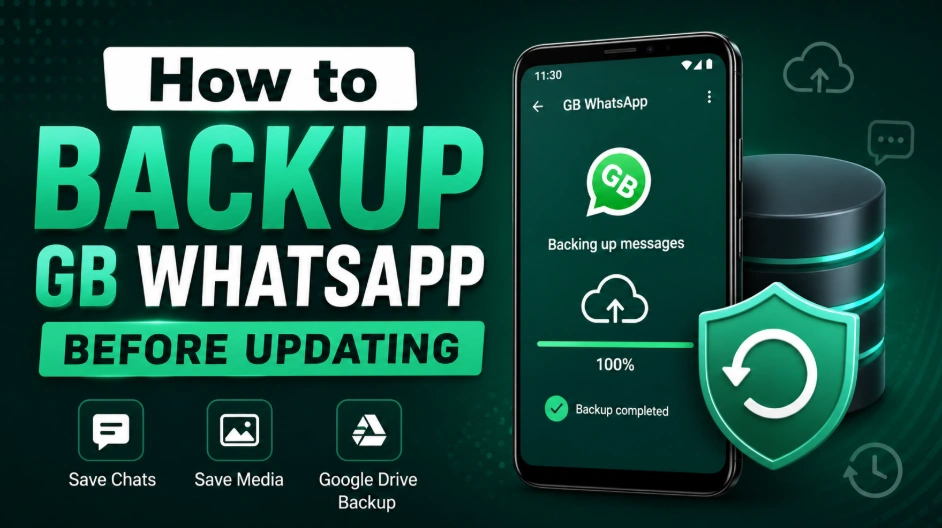
Updating GB WhatsApp to the latest version can bring new features, improved performance, and bug fixes. However, many users worry about losing important conversations, photos, videos, and other files during the update process.
Creating a backup before updating is the safest way to protect your data. A proper backup allows you to restore your chats and media if something goes wrong during installation or if you need to reinstall GB WhatsApp later.
This guide explains how to backup GB WhatsApp before updating and how to keep your important data safe.
Why Should You Backup GB WhatsApp Before Updating?
Before installing a new GB WhatsApp version, it is recommended to create a backup because updates may sometimes cause unexpected issues.
A backup helps protect:
- Chat messages
- Photos and videos
- Voice messages
- Documents
- Shared files
- App settings
If the update fails or you need to reinstall the app, you can restore your saved data instead of starting from the beginning.
How to Create a GB WhatsApp Backup
Follow these steps to create a local backup:
- Open GB WhatsApp on your Android device.
- Tap the three-dot menu in the top-right corner.
- Select Settings.
- Open Chats.
- Tap Chat Backup.
- Select the backup option and wait until the process is complete.
Make sure your device has enough storage space before starting the backup.
Backup GB WhatsApp Photos and Videos
Chat backups may not always include every media file depending on your settings.
To protect your photos and videos:
- Open your file manager.
- Find the GB WhatsApp folder.
- Copy important folders such as:
- Media
- Images
- Videos
- Documents
Save these files in another location, such as internal storage or an external backup folder.
Where Is GB WhatsApp Backup Stored?
GB WhatsApp backups are usually stored inside your Android storage under the GB WhatsApp folder.
The exact location may vary depending on the Android version and device settings.
Keeping a copy of this folder makes it easier to restore your data after updating or reinstalling the app.
What to Do Before Installing a New Version
Before updating GB WhatsApp:
- Complete the backup process
- Check that the backup file exists
- Make sure your phone has enough storage
- Download the latest APK version
- Avoid deleting the old app before confirming your backup
These steps reduce the risk of losing your conversations.
How to Restore GB WhatsApp Backup After Updating
After installing the new version:
- Open GB WhatsApp.
- Verify your phone number.
- Allow storage permissions.
- Select restore when the backup is detected.
- Wait until the restoration process finishes.
Your chats and saved media should appear after successful restoration.