How to Pin Chats in GB WhatsApp
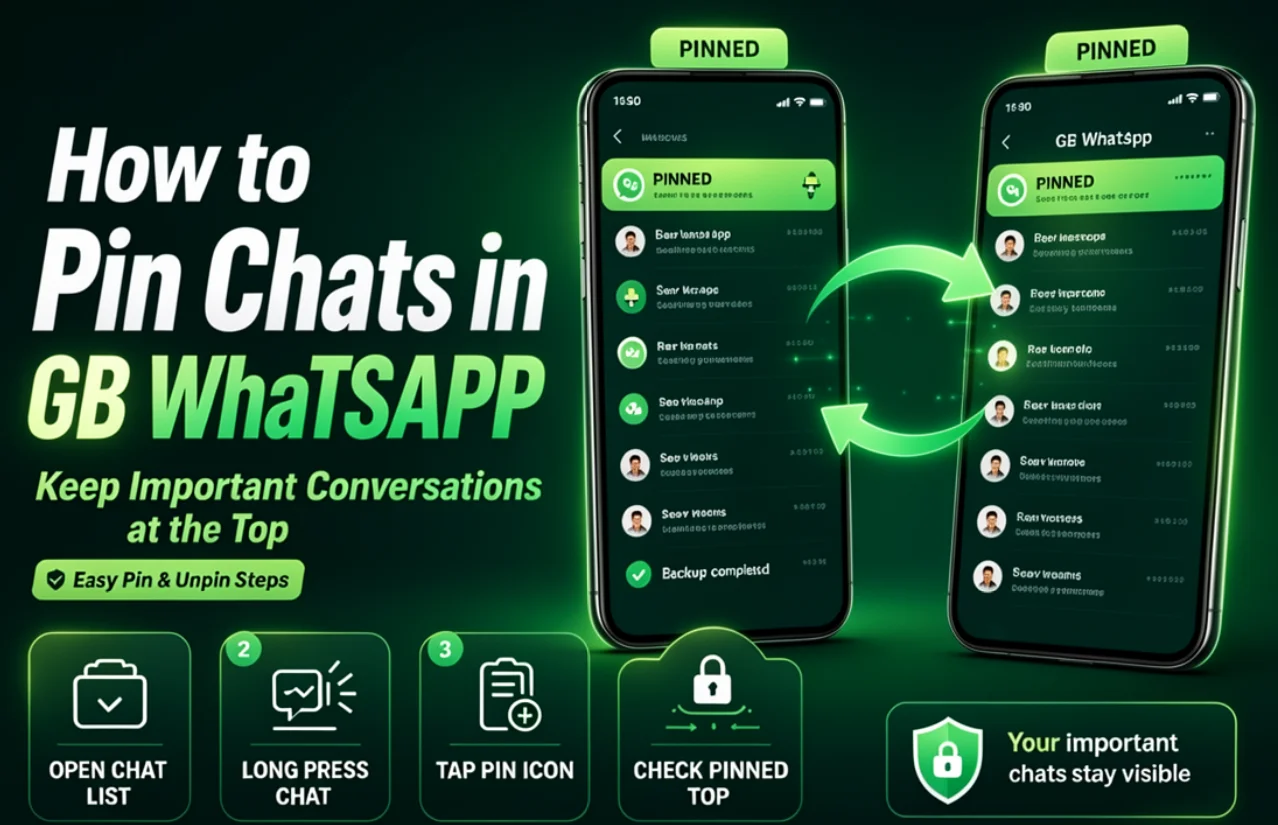
Pinning chats in GB WhatsApp can help you keep important conversations near the top of your chat list. This is useful when you regularly message family members, friends, colleagues, or groups and want quick access without scrolling through other conversations.
The available options may vary depending on your GB WhatsApp version. The following steps explain how to pin and unpin conversations and what to check if the option is unavailable.
What Does Pinning a Chat Do?
Pinning a chat keeps a selected conversation near the top of your chat list, making it easier to find. Instead of relying on the time of the latest message, you can keep certain conversations in a convenient position.
This feature is useful for:
- Keeping frequently used conversations easy to access.
- Finding important group chats quickly.
- Reducing the time spent scrolling through recent messages.
- Organizing your chat list around your daily communication needs.
Pinning a chat does not delete messages or prevent new messages from arriving.
Steps to Keep Important Chats at the Top
Before starting, open GB WhatsApp and make sure your conversations have loaded.
- Open GB WhatsApp on your Android phone.
- Find the conversation you want to keep at the top.
- Press and hold the chat in the conversation list.
- Check the toolbar at the top of the screen for a pin icon or open the available chat options.
- Select the pin option if it appears.
Return to the chat list to check whether the conversation is now displayed near the top.
If your version uses different icons or menu names, check its available chat-management options.
How to Pin a Chat on Android
The exact interface may differ between Android devices and GB WhatsApp releases, but the basic process is generally similar.
Open the conversation list rather than entering the chat itself. Press and hold the conversation until the selection toolbar appears. If a pin icon is available, tap it to pin the selected conversation.
If you cannot identify the correct icon, check the menu labels before selecting an option. Avoid tapping delete or clear-chat controls by mistake.
How to Pin a Group Chat
Group conversations can be easier to manage when they remain accessible from the top of your chat list.
- Open the main conversation list.
- Find the group you want to prioritize.
- Press and hold the group conversation.
- Look for the pin option in the toolbar or menu.
- Select it if supported by your version.
You do not need to be a group administrator simply to organize a conversation in your own chat list, although the available interface may vary.
How to Unpin a Chat in GB WhatsApp
You can remove a conversation from the pinned position when it is no longer a priority.
- Open GB WhatsApp.
- Find the pinned conversation near the top of the list.
- Press and hold the conversation.
- Look for the unpin icon or option.
- Select it and return to the chat list.
Unpinning a conversation does not remove the chat history. The conversation remains in your chat list and can move according to its activity and the app's sorting behavior.
How to Manage Multiple Pinned Chats
If you regularly use several conversations, pinning can help you keep them accessible. For example, you might prioritize a family chat, a work conversation, and a frequently used group.
When organizing multiple chats, consider these tips:
- Pin only the conversations you access regularly.
- Unpin chats that are no longer important.
- Use chat search when you need to find a conversation that is not pinned.
- Keep important conversations organized without deleting older messages.
The number of chats you can pin may depend on the version and implementation. Check the app interface for any limit rather than assuming every release supports the same number.
Why Can't I Find the Pin Chat Option?
If the pin option does not appear, several factors may explain the issue.
You selected the wrong screen: Make sure you are pressing and holding a conversation in the main chat list rather than inside an open chat.
The menu looks different: Toolbar icons and option names may vary between versions. Check the available menu carefully.
The feature is unavailable in your version: Not every modified release has an identical interface or feature set.
The app is behaving unexpectedly: Close and reopen the app, then check the conversation list again. Avoid clearing app data or reinstalling the APK just to resolve a missing menu option.
Only download modified applications from sources you can assess carefully. GB WhatsApp is an unofficial third-party modification and is not affiliated with WhatsApp or Meta.
What Happens When You Receive New Messages in a Pinned Chat?
A pinned conversation generally remains near the top of the chat list even when other chats receive new messages. This is the purpose of pinning: to make selected conversations easier to access.
However, the precise ordering behavior may depend on the app version. Check your chat list after receiving a message to confirm how your version handles pinned conversations.
Pinning also does not guarantee that notifications will appear. Notification permissions, battery restrictions, and other Android settings can affect message alerts separately.
Does Pinning a Chat Affect Message Notifications?
Pinning a chat is primarily an organizational feature. It does not normally change whether a conversation is muted or whether Android allows notifications.
If a pinned conversation does not produce alerts, check the conversation's mute settings and your phone's notification permissions. These settings are separate from the pinned status.